


NEW feature:
Tilt Correction
Straighter vehicle photos, automatically
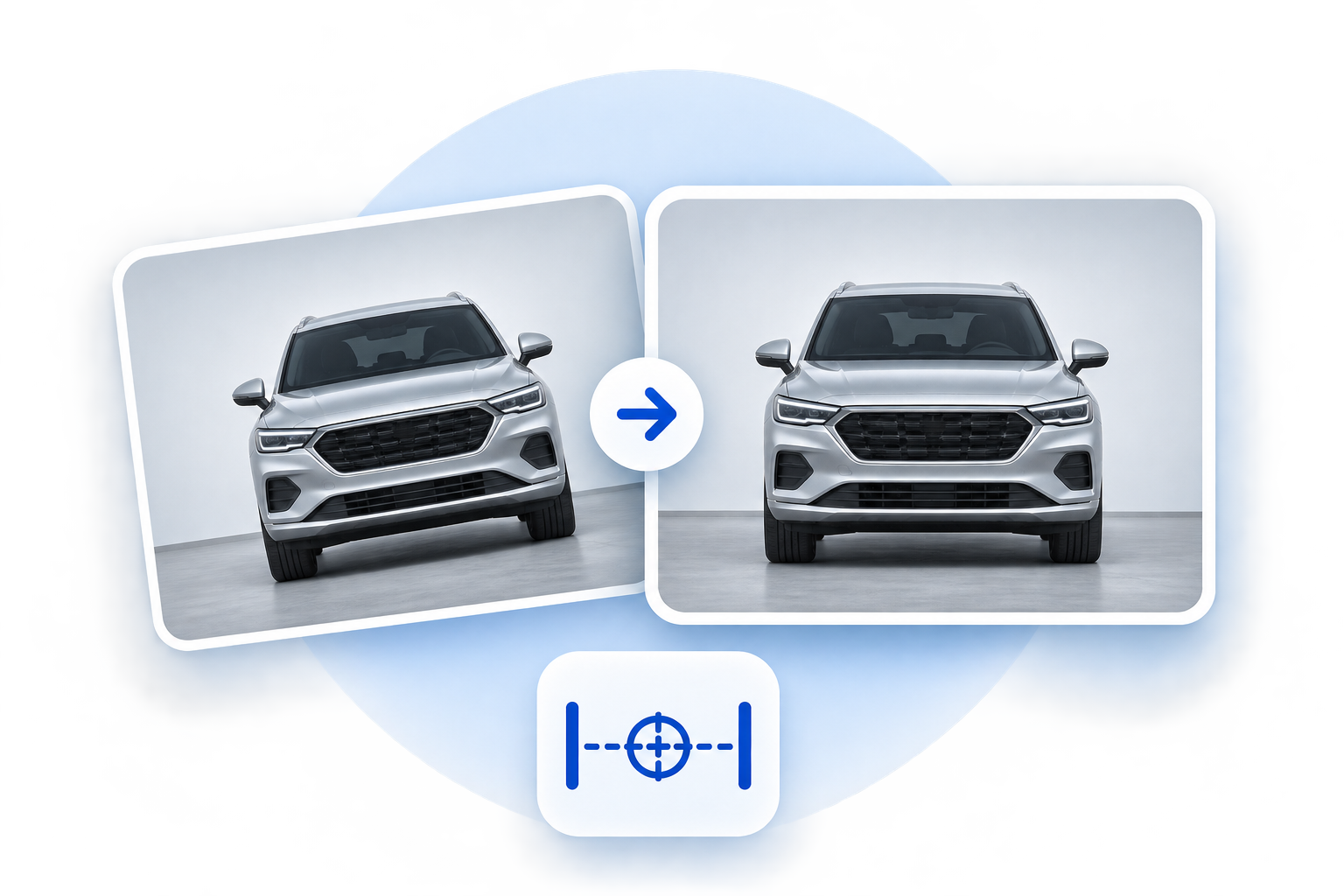
Tilt correction is here!
We’re thrilled to announce the newest addition to CarCutter: Tilt Correction.
It’s a feature we’re genuinely excited about, because it quietly solves a problem every dealership knows too well.
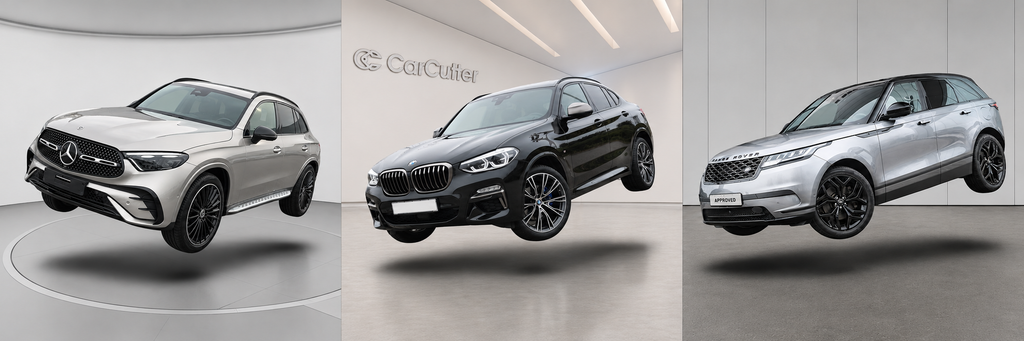
Photos taken on the lot aren’t always perfectly straight. Space constraints, the topography of the dealership, or simply a rushed shot can all leave vehicles looking tilted or crooked — and in the showroom, that comes across as odd and chips away at the perceived quality of your listings. Taken far enough, a tilted shot can even make a car look like it’s floating.
And hey, if you’re selling levitating vehicles, then great! Otherwise, it’s a little too dramatic for a listing…
Tilt Correction fixes this at the source, so a slightly skewed shot never becomes a less convincing showroom image.
TL;DR: Tilt Correction is a new vertical-correction model that automatically straightens crooked photos taken with the CarCutter App, before background processing begins. The result is cleaner, more consistent showroom images, with no extra steps for your photo crews.
How it works
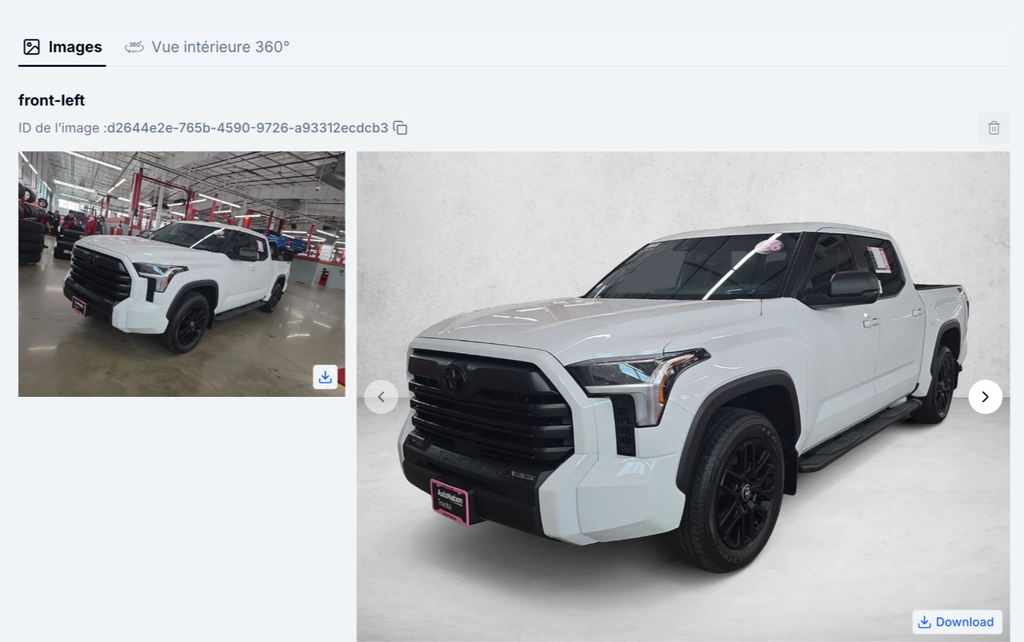
Tilt Correction runs automatically right after a picture is shot, before the backgrounding process starts. There’s nothing for your crews to do differently – they take the photo, and the correction happens in the pipeline.
You can see the difference directly in the CarCutter HUB by comparing the original image with the processed result.
How to activate it
Tilt Correction can be activated at both token and guideline level – useful if you use different guidelines for different vehicle types (for example, cars vs. bikes).
To turn it on:
- Select the Tilt Correction attribute using the Add attribute button, then click Add.
- In the Processing section, choose Yes to activate Tilt Correction, then Save.
That’s it. From the next shots taken in the CarCutter App, eligible images will be straightened automatically.
Great-looking listings, with less on your plate
Perfectly straight photos used to depend on space, discipline, and a bit of luck. Now they don’t. Tilt Correction removes the guesswork so every eligible image looks polished in the showroom – one less detail standing between your team and a sharp listing.
Need a hand getting started or fine-tuning it per guideline? Reach out to your CarCutter contact or our support team!
FAQ
Tilt Correction is a vertical-correction model that automatically straightens crooked or tilted vehicle photos. It runs right after a picture is shot, before the backgrounding process starts, so eligible images come out straighter without any manual editing.
Photos taken on the lot aren’t always perfectly straight — because of space constraints, the dealership’s topography, or a rushed shot. Crooked images look odd in the showroom and can lower the perceived quality of your listings. Tilt Correction fixes this automatically at the source.
No. CarCutter automatically applies the correction to every photo taken through the mobile app. Crews shoot as usual and get a consistently higher-quality result.
Only images coming from the CarCutter App. API images aren’t corrected — including Stock Images, which don’t need to be straightened.
No. Tilt Correction is built for four-wheeled vehicles only. It should not be used for bikes or boats.
Activate it at the token or guideline level:
1. Select the Tilt Correction attribute using the Add attribute button, then click Add.
2. In the Processing section, choose Yes, then click Save.
Yes. Because Tilt Correction can be set at the guideline level, you can activate it on the guidelines you choose — useful if you use different guidelines for cars and bikes, for example.
In the HUB, compare the original image with the processed result. The improvement in straightness is visible there.
No. It runs before the backgrounding process begins; backgrounding then proceeds as usual on the corrected image.